
How to manage your website licenses
This guide will cover:
- checking on which sites you are currently using your license key
- removing your license key from one domain & moving it to another website (e.g. development site-> production site)
Every license key / account operation is done in your Purchase History.
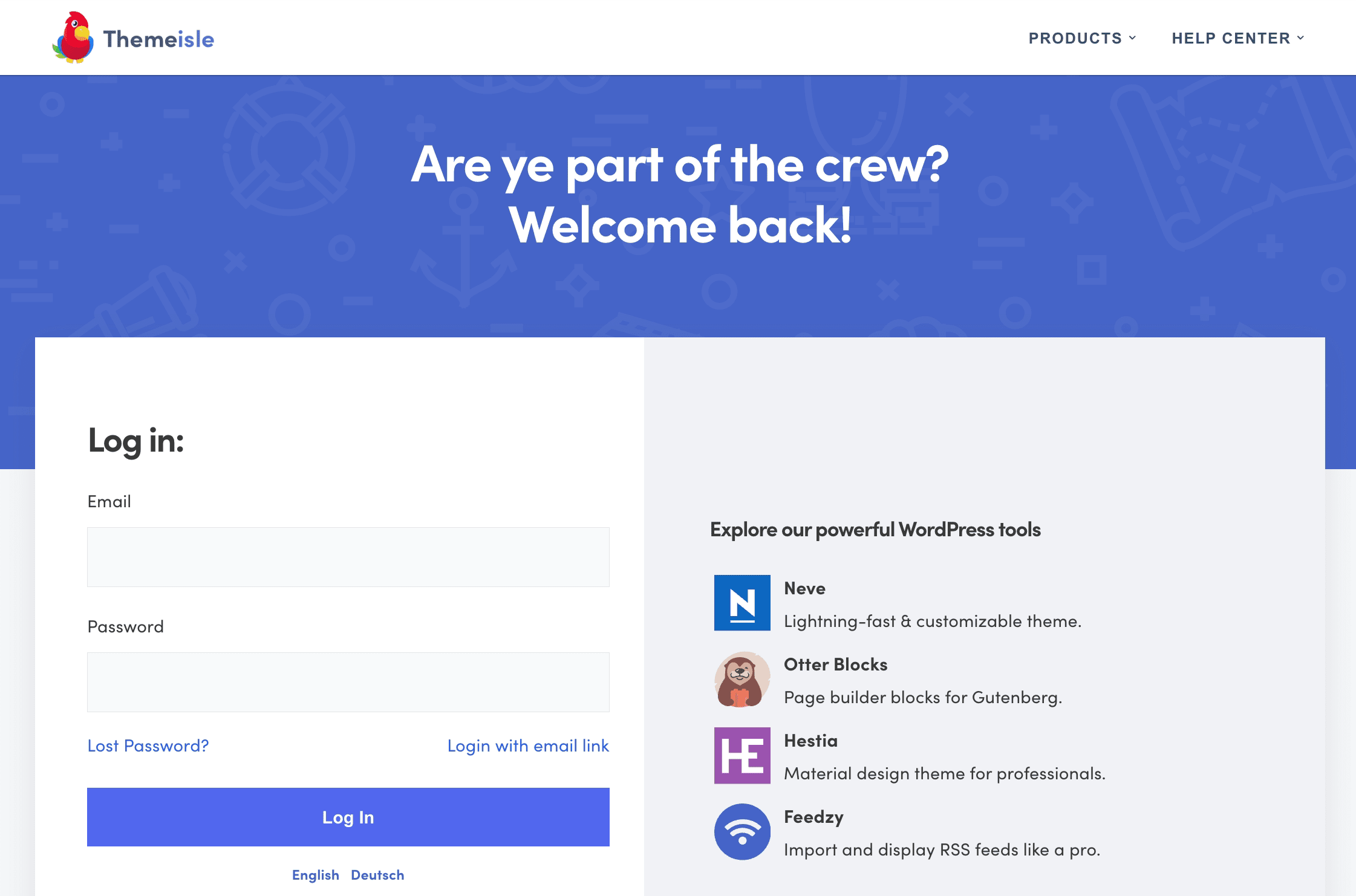
First things first -> Login to Purchase History.
1. Check on which sites your license key is active
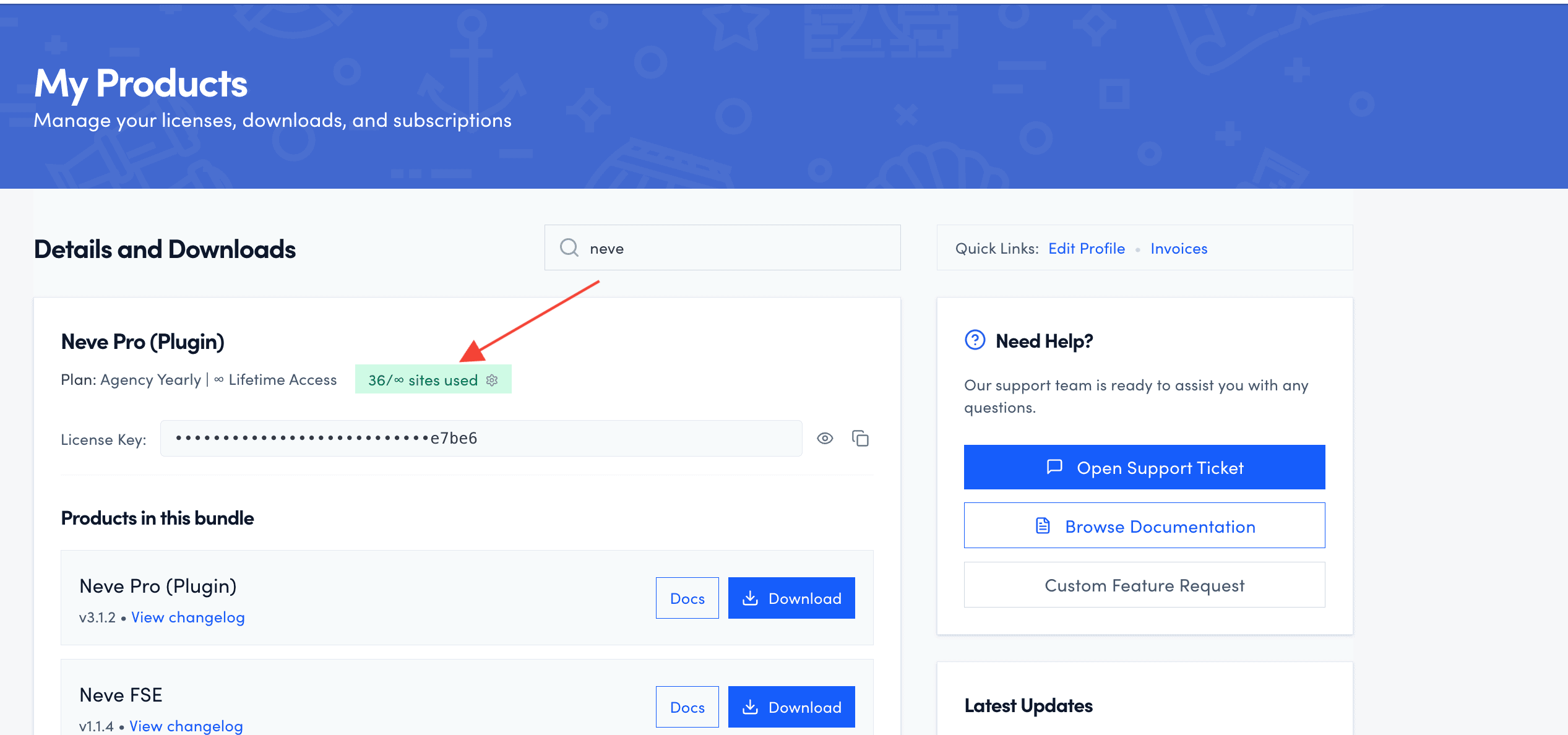
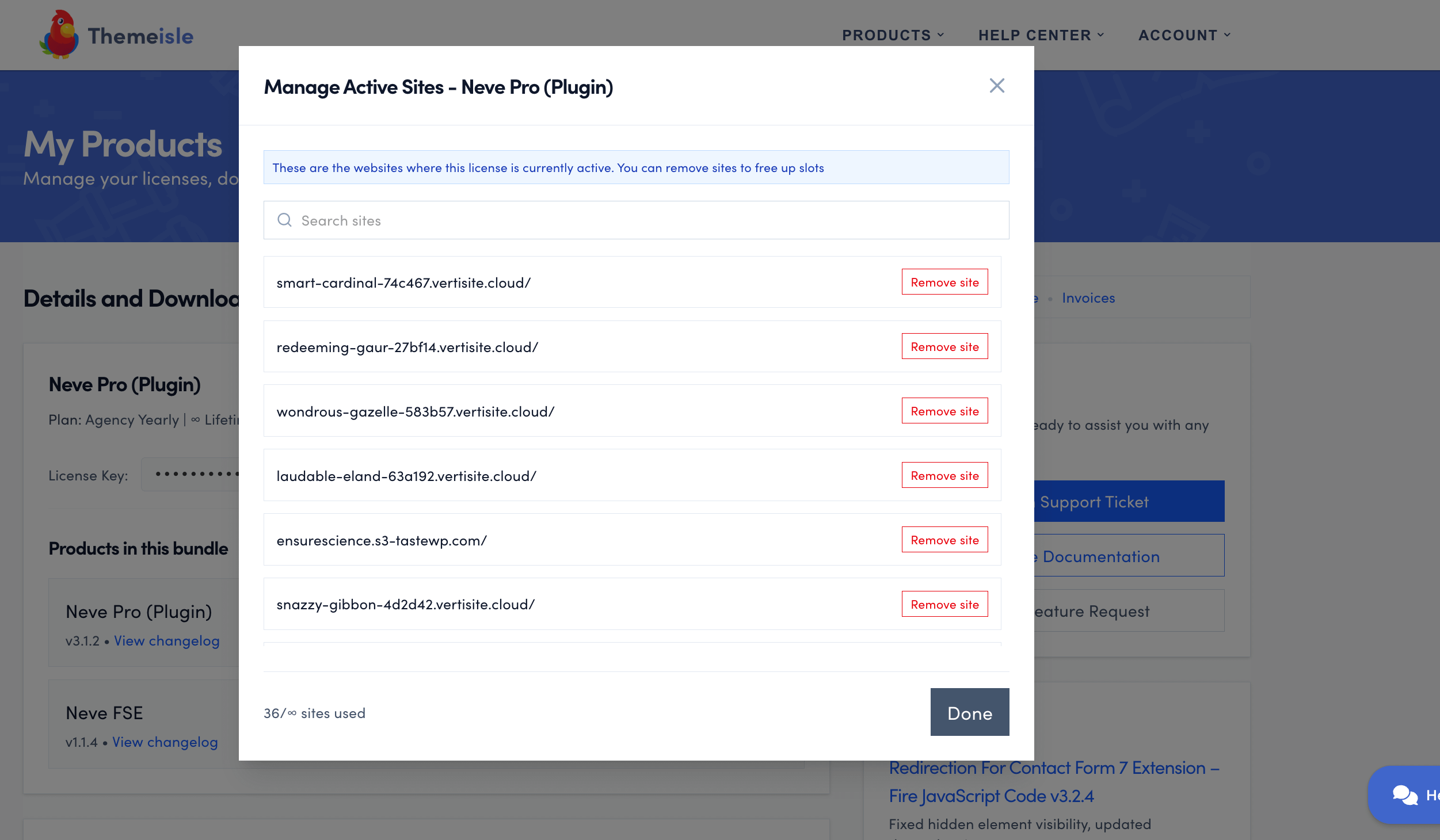
Once you are logged in, search for the product of your choice, and click on the number of sites used. The list of all of the websites / domains where your license keys are currently active is available for you there, as you can see below:
2. Removing your license key from one domain & moving it to another
This section allows you to:
- Search for a specific website that you own
- Remove the websites that don't need your license key anymore
Note: If you activate your license key on a new domain, it will take some time until the domain is visible in the list above.
From the list above, if you would want to remove the localhost/test/ website and activate another one instead, follow the steps below:
- Click on Remove Site for the localhost/test/
- Go to your new site and activate your license key according to this guide.