
Unzip Existing Attachments
Prerequisites and Setup
- Any Media Library Organizer Pro license
Overview
Media Library Pro's Unzip functionality allows you to manually unzip existing Attachments that have already been uploaded to the WordPress Media Library.
List View: Unzip Single ZIP File
If you are viewing uploads in the list view (i.e. a table similar to how Pages and Posts are displayed in the WordPress Administration interface), you can unzip a single ZIP file by:
- Hovering the mouse cursor over the ZIP file
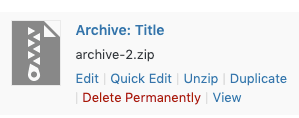
- Clicking the Unzip option in the list of actions
Any success or error messages during the process will be displayed.

List View: Unzip Multiple ZIP Files
If you are viewing uploads in the list view (i.e. a table similar to how Pages and Posts are displayed in the WordPress Administration interface), you can unzip multiple attachments by:
- Tick the checkboxes beside the ZIP files that you wish to unzip

- Click the Bulk Actions dropdown
- Choose the Unzip option
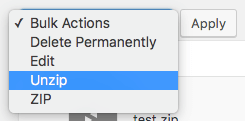
- Click the Apply button
An on screen progress bar will be displayed, updating as each ZIP file is unzipped.
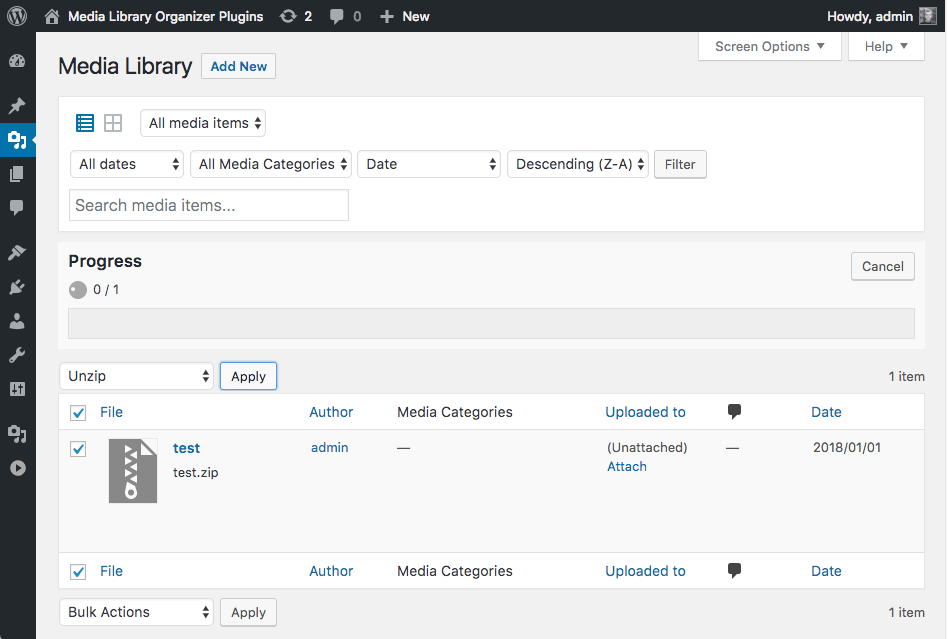
Any success or error messages during the process will be displayed
Grid View
If you are viewing uploads in the grid view:
- Click the Bulk Select button
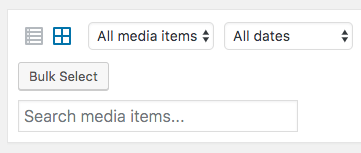
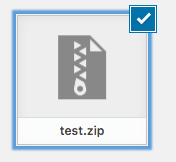
- Click the ZIP file(s) that you wish to unzip
- Click the Unzip button

An on screen progress bar will be displayed, updating as each ZIP file is unzipped.
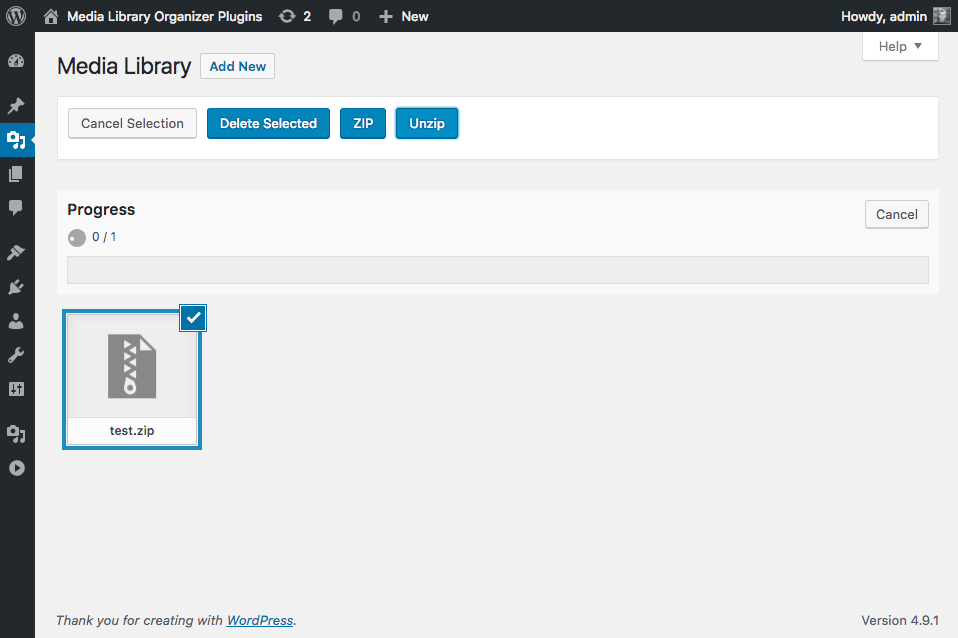
Any success or error messages during the process will be displayed